Learn How to Easily Migrate AOL to Gmail with Safety

 4.9based on 1207 user reviews
Over the years, the process of email migration has evolved drastically. As a result, migration needs have become more complex. Email migration has advanced from basic POP3 transfers to modern cloud-based solutions. Transferring emails between platforms now demands security, precision, and efficiency. Forwarding AOL mail to Gmail is now a common requirement. It connects an outdated platform with an advanced one, building a secure email ecosystem.
AOL was once considered a top email platform in the early 2000s. It was widely seen as a progressive technology. However, as time passed by, users’ expectations rose.
After Gmail emerged, it rapidly became the most widely used email platform globally. It provides seamless security and integrations for business, personal use, and more.
Email migration is not just about forwarding messages. It also involves sustaining attachments, communication, timestamps, folder structure, and metadata. Below are some of the proven methods to safely migrate AOL to Gmail in a well-planned manner.
Why the Need to Migrate AOL to Gmail Arises?
Users often transfer AOL to Gmail for the following reasons, based on both long-term usability and technical merits:
- Reliability and Security: Gmail provides key security features like two-factor authentication, phishing detection, and spam filtration.
- Satisfactory Storage Capacity: Gmail offers far more storage than AOL. Users can scale up easily and import AOL to Gmail with all attachments included.
- Google Workspace: Users can access Drive, Calendar, Docs, and Meet to boost productivity.
- Easily Accessible: Users can access their emails from any operating system or location. No complicated configurations are needed, which supports a work-from-anywhere environment.
- Healthy Management: Filters, labels, alerts, and search tools help users organize communication more effectively than AOL.
Manual Methods to Transfer AOL to Gmail
Post Office Protocol (POP3) Method
Phase 1: Secure AOL Source
- Open and log in to your AOL account
- Tap on “Generate App Password”
- Choose the option “Other App” in the dropdown
- Call it “Gmail Migration” preferably
- Finally, generate and record the security code of 16 characters
Phase 2: Configure to Gmail
- Open Gmail and go to settings
- Click on “See all settings.”
- Direct to “Accounts and Import” option
- Navigate to “Import emails from my other account (POP3)”
- Enter the following details:
Username:
Password
Pop Server: pop.aol.com
Port: 995
Verify: “Always use a secure connection (SSL).”
Check: “Label incoming messages.”
Limitations of Manual Method to Forward AOL Mail to Gmail
Manual methods are useful only while dealing with minimal information in small quantities. However, to migrate AOL to Gmail, which consists of critical data in bulk, has had numerous issues during the process. In particular, several complications arise:
- Methods like POP3 use non-secure protocols and only detect the Inbox. They segregate historical data from emails during the process, disrupting the folder hierarchy.
- It does not guarantee complete email transfers. It may leave behind attachments, skip emails, or overlap files, which raises the risk of data loss.
- It fails to preserve crucial attributes like read/unread status and timestamps
- Furthermore, it is not suitable for bulk migrations. Large data volumes cause crashes and incomplete transfers.
- Users must constantly troubleshoot and reconfigure accounts throughout the process.
Move AOL to Gmail Using the Professional Method
Many professionals seek advanced solutions for these migration challenges. One such trusted tool is the Email Backup Wizard. This software utility is designed to seamlessly migrate AOL to Gmail for high-volume information, including historical data.
Unlike manual solutions, this robust tool forwards AOL email to Gmail directly from server to server. It creates an exact mirror of the AOL account and configures it to Gmail without any complications. This tool provides a seamless transition between the two platforms. It preserves data integrity throughout the migration process.
Steps to Follow to Convert AOL to Gmail
- Install and open the tool on your device
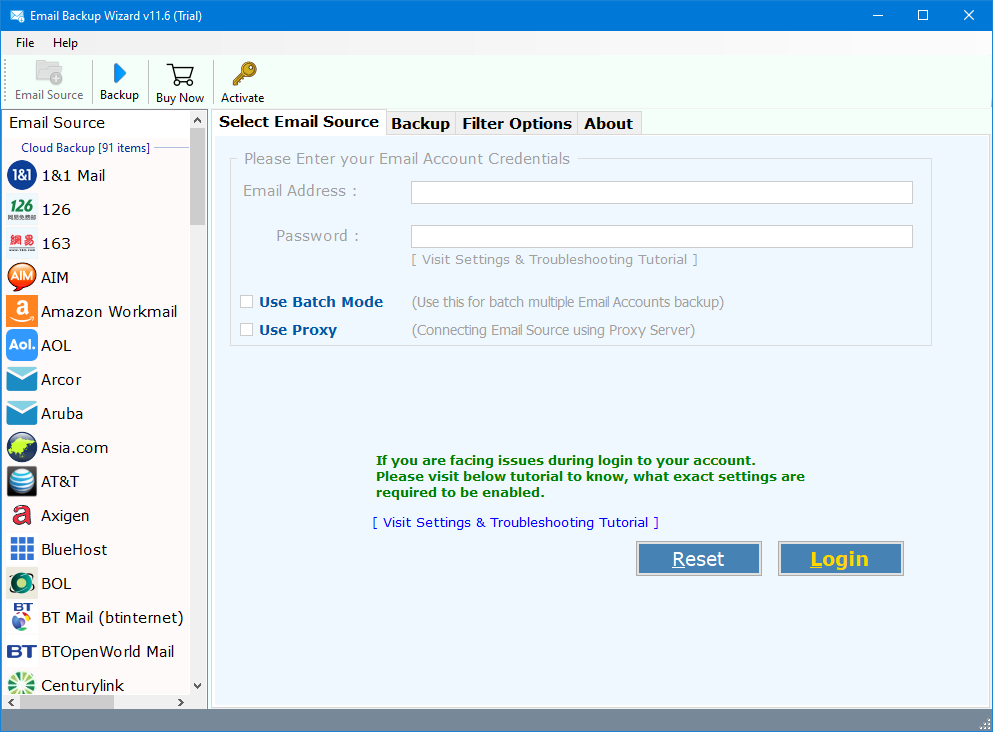
- Enter your AOL login details

- Select the emails you need to migrate
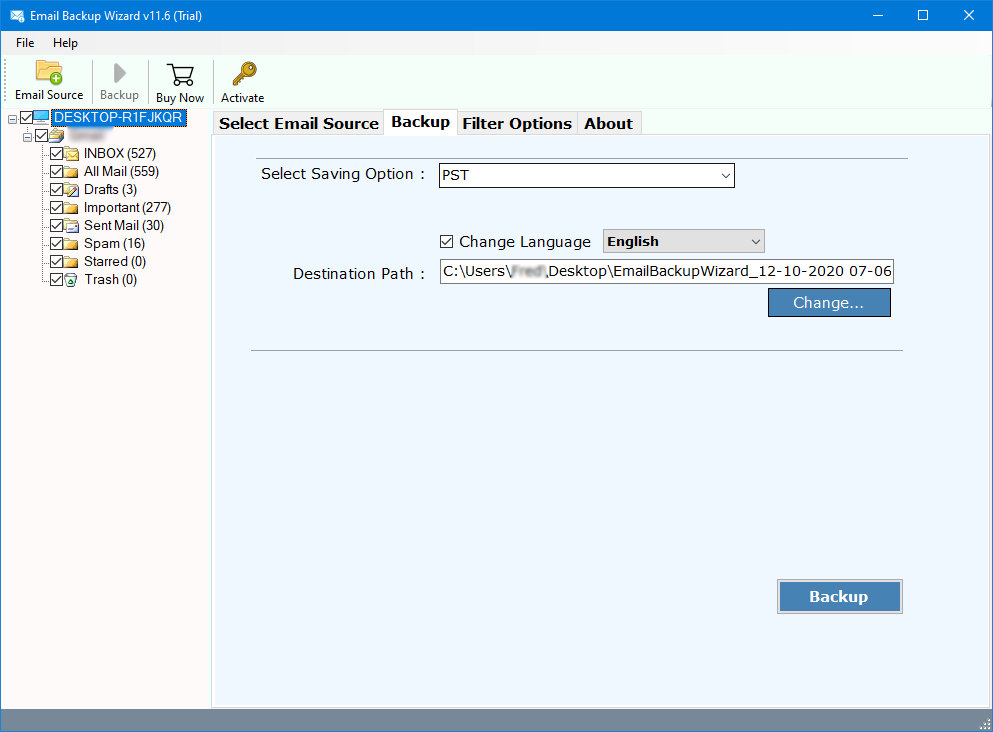
- Choose “Gmail” as the saving option

- Enter your “Gmail” credentials

- Choose “IMAP” if the preferred option is not given (optional)
- Finally, hit “Sign in with Google”
Top Features of the Automated Tool
- Easily migrate AOL to Gmail, including all elements like sent data, drafts, inbox, and customized folders.
- Ensures the preservation of the integrity of the data during and after the import process, consisting of attachments, timestamps, email headers, metadata, and the list goes on.
- Users can avail advanced filters to select and migrate AOL to Gmail according to criteria like date range, subject, sender, folder name, etc., avoiding any unwanted or unnecessary data, is processed with the important ones.
- Efficiently forward AOL mail to Gmail in bulk, without any degradation of performance or complicated sync.
- Provides an intuitive and user-friendly interface for users, whether they are from a technical or non-technical background.
- The tool generates a detailed report after migration. Users can verify that all files are in order with their attachments.
Conclusion
While adopting a traditional approach can be beneficial for small inboxes, migrating AOL to Gmail at scale carries a grave risk of data loss and security threats. To avoid such situations, it is highly suggested to use experts’ recommended tools. With the right tool, users can stay stress-free. In addition, the software offers a modern, secure ecosystem that safely preserves data, regardless of file size.
4.9
based on 1207 user reviews