How to Migrate Office 365 to Zoho Mail? Safe Ways

 4.9based on 1207 user reviews
“Email migration isn’t copy-paste alone; it drives your entire business continuity! Think about it!” – As said by an email consultant.
Key Takeaways
- O365 users usually migrate to Zoho mail due to cost & privacy needs.
- Manual mechanism is there but it proves risky for big mailboxes.
- Data loss is a common thing if manual steps are skipped somehow.
- A pro dedicated tool guarantees safe migration.
- Planning before doing the process of migration saves time & effort.
Businesses often switch email clients for reducing costs, improving privacy, and attain better control. This is the reason why many people wish to migrate Office 365 to Zoho Mail. Here, in this blog, we will be explaining the real issues faced related to this, the manual mechanism of doing such migration, and how a dedicated solution brings total data safety into this process.
Also Read: Migrate Office 365 email to Gmail
Why Go for Zoho?
Often, email bills rise, or security rules alter. This is exactly when people look for safer & much cheaper options. Zoho Mail tends to be a smart pick here. The comparison of Office 365 vs Zoho Mail indicates that Zoho provides cost control & privacy, while O365 provides deep Microsoft app integration. Choosing to do the migration solely depends on your business motives & organizational goals.
When Do People Migrate Office 365 to Zoho Mail?
Below are some common use cases for Office 365 to Zoho Mail migration, as below:
- When email subscriptions cost mount.
- At the time of company rebranding.
- For availing better privacy policies.
- To lower the dependency on various Microsoft tools.
- During server and admin changes.
Statistics to Know
As per Microsoft’s Learn documentation, email data loss largely happens during improper migrations. As per Zoho Mail’s (Workplace Blogs) official resources, business houses which plan migrations well experience up to sixty percent lesser support problems.
A Real Instance from the Business World
The owner of a small IT firm was disturbed by the rising O365 costs. He planned to transfer emails from Microsoft 365 to Zoho Mail using the manual mechanism. But in the middle of the process, some folders went missing. He also had no backup of that data with him. Subsequently, he restarted the process again seeking a professional hand this time, with positive outcomes.
How to Transfer Emails from Microsoft 365 to Zoho Mail? Manually
You can try to perform this Office 365 to Zoho mail migration manually if you wish to.
Manual Mechanism for IMAP-Based Migration
This is a mechanism for migration from Microsoft 365 to Zoho Mail.
Stepwise Procedure using Zoho Admin Panel (Good for Web-Based)
In this process, you will make use of Zoho’s built-in tool for establishing a direct connection.
- Firstly, Prepare in Zoho: You must add your domain & create users in Zoho Mail first of all.
- Then, Access Migration: You can now log in to your Zoho Workplace Admin Panel and after that go to Data Migration, to select Microsoft 365 there.
- Next, Connect Accounts: You have to provide your O365 admin credentials & then grant Zoho permissions (IMAP/POP/EWS).
- Now, Select Data: You need to choose to migrate Mail, Calendar, Contacts, & specify folders/date ranges if required.
- Further, Add Users: You need to map your O365 users to their corresponding Zoho Mail accounts.
- Finally, Start Migration: Go on to start the migration that runs in the background, and monitor progress.
Benefits of the Manual Process
There are quite a few benefits to employing this method, as follows:
- No cost would be involved in doing these steps.
- Such a way is fine for very small mailboxes.
- In these steps, you will be using built-in features.
Lackings of the Manual Mechanism
The manual way isn’t foolproof at all. Check out its shortcomings below:
- There is a pretty high risk of data loss.
- There is no retry option for failed emails.
- Such a process is highly time-consuming.
- No backup would be created.
- You can’t migrate shared mailboxes this way.
- Folder hierarchy might even break.
- You do not have any option for selective migration.
- Big files usually fail with such a tryout technique.
- This process requires sound technical expertise.
When users decide to migrate Office 365 to Zoho Mail, they face issues like mailbox size limitations, IMAP errors, admin permission, & downtime. Email systems tend to be pretty complex, and even a small error can lead to missing emails and/or broken folder structures. In light of this, it is always recommended to go for a dedicated backup solution, firsthand.
How Does a Professional Tool Help More?
A dedicated tool ascertains process accuracy and data safety. This is where the Email Backup Software helps you by providing a structured & controlled process of migration.
Chief Attributes Office 365 to Zoho Mail Migration Tool
Software features that help a user the most. Here are some most helpful ones:
- Migrate all data from Office 365 to Zoho Mail including emails, attachments, contacts, calendars, etc.
- This tool moves emails without causing any kind of data loss.
- The folder structure is guaranteed to be maintained.
- Bulk mailbox migration is also supported here.
- It is possible to handle even the big-sized attachments smoothly.
- Direct migrate Office 365 emails to Zoho Mail support.
- The software preserves metadata including date & sender etc.
- Selective folder migration is allowed.
- Easily migrate Office 365 to IMAP, Gmail, Exchange Server, etc.
- There is secure login authentication.
How to Import Office 365 emails to Zoho Mail with Tool?
This is a stepwise explanation of using this tool with ease & comfort:
- Install: First, you must run the software on your system.
- Email Source: Now, add Office 365 as the email source and then enter your O365 credentials and after that click Login.

- O365 Folders: The software analyses your O365 folders. You can now see the folders’ list on the left panel. It is easy to choose from those.

- Save Option: Now, select IMAP as the saving option and enter your Zoho Mail credentials.
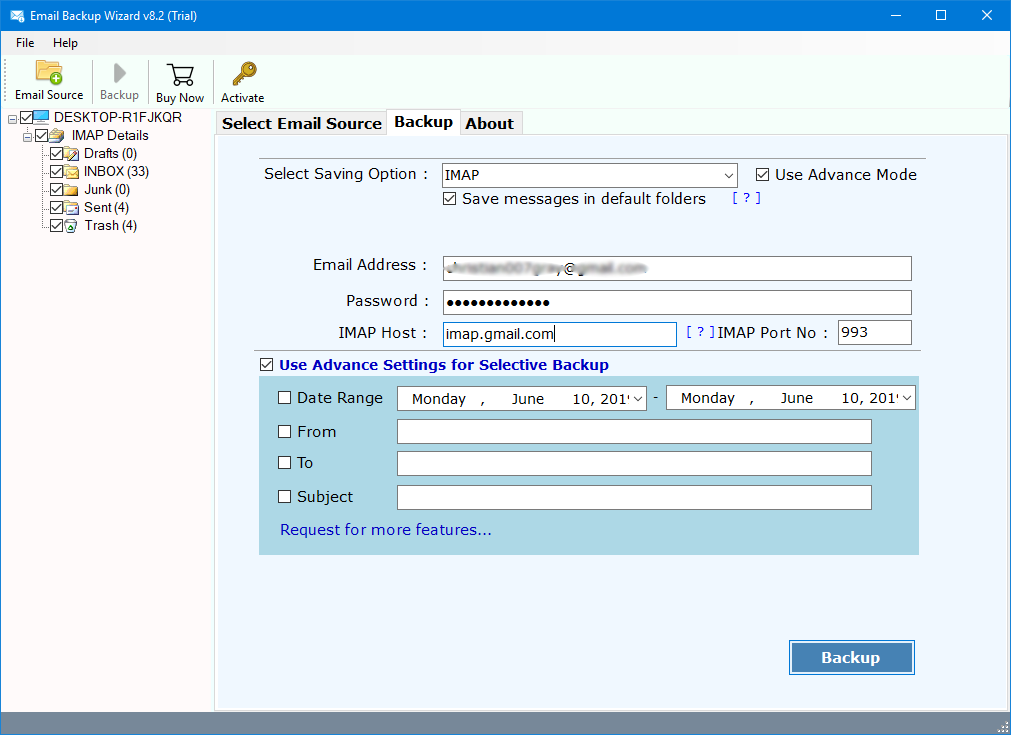
- Advanced Settings: It is possible to pick a date range or specific folder for setting filters.
- Migration: Hit “Backup” to start the conversion. You can now monitor the progress till the migration completes.
- Results: It is easy to verify migrated emails in Google Workspace.
These steps will simplify the process to switch outlook 365 to Zoho Mail safely.
Let Us Discuss Some FAQs
This is the FAQ section. It is recommended that you read the questions asked by other users to gain quality info:
Q 1: How can we migrate Office 365 to Zoho Mail safely without any data loss?
Answer: This can be done by using a tested professional tool. This will help to avoid Office 365 email migration to Zoho issues.
Q 2: Is O365 migration to Zoho Mail good enough for business emails?
Answer: Yes! If you have planned the migration well and performed it using a good pro tool, then it is worthwhile for your business environment.
Q 3: Is migration service needed for O365 to Zoho Mail?
Answer: Big firms take advantage of Office 365 to Zoho Mail migration service for attaining far more accuracy.
Q 4: Do folders & email attachments stay the same even after migration?
Answer: Yes! If you import Office 365 emails to Zoho Mail using the professional tool, all your folders and attachments will remain same.
Let’s Conclude
If you really have to migrate Office 365 to Zoho Mail safely without encountering any kind of data loss, then a smart move is to fetch a professional tool, and remain a little far only from the manual approach, as it fails to give results.
4.9
based on 1207 user reviews