Guide on How to Migrate from Hotmail to Protonmail

 4.9based on 1207 user reviews
In an era of rapid digitization, privacy is being deeply scrutinized. Email services are re-evaluating their services to meet users’ expectations in the ever-changing trend. While Hotmail is known for its intuitive environment, users with privacy concerns are choosing Protonmail over it, resulting in users migrate from Hotmail to Proton Mail without hindering any element of emails.
That is why users need to understand and be aware of the fundamental difference between Hotmail and Protonmail. Read the guide till the end and explore some of the proven methods along with their attributes and drawbacks.
Why Users Forward Hotmail to Protonmail?
Generally, the purpose of Hotmail is to work for the Microsoft infrastructure, where emails are encoded yet sustained to be accessible to the service provider. Whereas, Proton mail tend to follow a strict code of conduct in order to preserve users’ data information at any cost. The very client follows two of the most important measures to protect information, which are the following:
Zero Access Encryption:
This measure provides the sole authority to the users to access stored information on the server, such as emails, contacts, calendars, unabling even Proton Mail to access it. Only users who have the key to unlock or access the files.
End-to-End Encryption:
The emails are encrypted on the sender’s device before sending the email, and is only decoded after being received on the receiver’s device, eliminating the intermediate channel to access files during the migration process.
Measures to Consider before Migrating Emails
- Ensure to declutter your Hotmail account with junk and unwanted emails for a seamless transfer process.
- Identify and adjust the size of all the emails and mailboxes that are required to migrate to Proton Mail to avoid throttling.
- Create or rename folders and shift all the essential emails to the folders that are critically prioritized.
- Filter out all the contacts, emails, and calendars from the ones that are not needed to minimize the processing of unnecessary emails, in case not deleted properly.
- Make sure that IMAP is successfully enabled in Hotmail settings and test the login using any third-party client.
- Disable all security alerts temporarily and update app passwords if needed.
Add Hotmail to Proton Mail Using Manual Techniques
Method 1: Forward Messages
- Open Hotmail and go to “settings.”
- Click on “View all Outlook settings.”
- Further, go to “Mail” and enable “Forwarding.”
- Next, enter your Proton Mail credentials
- Forward the required emails and “Save changes.”
- Finally, confirm the request for “Forwarding” on Proton Mail
Method 2: IMAP Import Method
- Open and log in to Proton Mail
- Go to “Settings” and then “Import via IMAP.”
- Choose “Hotmail” from “Import.”
- Enter “Hotmail” credentials.
- Enable IMAP settings:
Server: outlook.office365.com
Port: 993 - Encryption: SSL
- Select the files and tap on “Start import.”
- Finally, wait for the import process to complete.
Limitations Faced by Users to migrate from Hotmail to Protonmail
- Some of the manual methods do not migrate old or historical contacts, emails, and calendars, nor do they sustain the integrity of users’ data while forwarding the files.
- Methods like IMAP import do not import files in the form of calendars and contacts.
- Large or oversized mail tends to take numerous hours or days to be transferred.
- Using traditional methods entails a high risk of missing mete information during the process.
- The system is not suitable for users to migrate files in a batch or an oversized mailbox.
- Not preferred by beginners or non-technical users due to the number of complicated steps.
- Using third-party clients increases the risk of data loss, threats, and malware, putting users’ information in jeopardy.
Experts Recommended Solution to Forward Hotmail to Protonmail
While traditional techniques are beneficial for scenarios of migrating small email files, they are not apt for users with files or mailboxes in large quantity. That is why it is highly recommended to go for a highly-rated Email Backup Wizard. This professional software solution not only allows users to safely back up emails, contacts, and calendars, but also guarantees to add Hotmail to Proton Mail with their respective attachments as well.
This automated solution is specifically designed to import, migrate, and export emails directly to other email clients without taking any kind of assistance from a third-party tool. Moreover, with bulk migration, the solution works completely without an internet connection, keeping every single data safe and secure.
Follow These Simple Steps to Easily Add Hotmail to Protonmail
- Install and open the tool on your operating system.
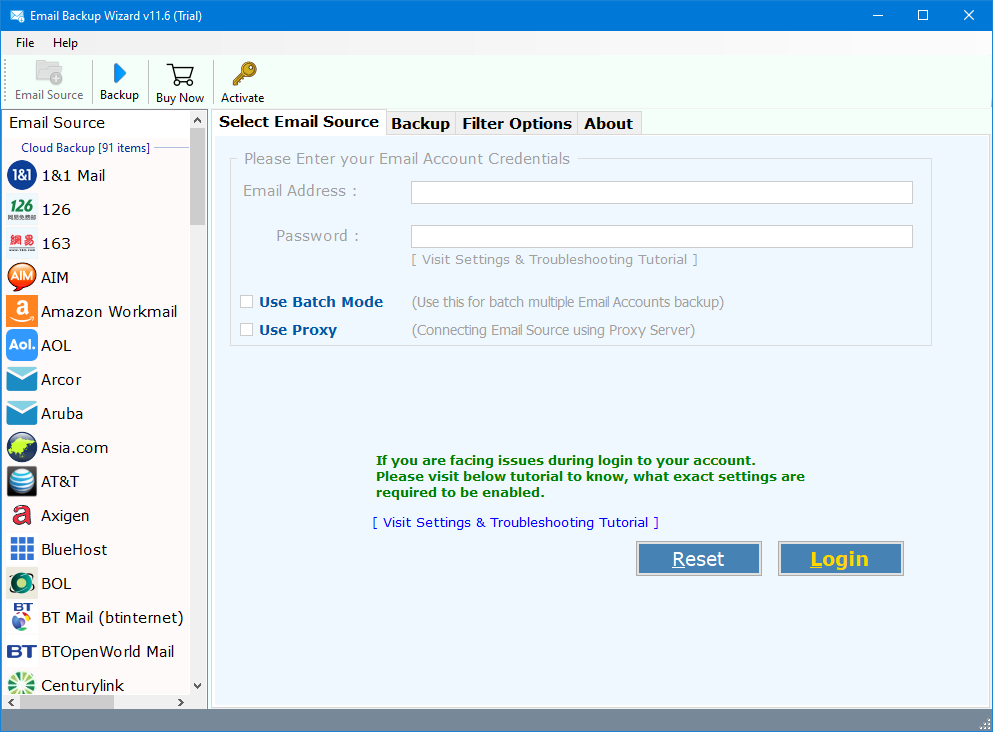
- Enter your “Hotmail” email and password

- Select the required files to migrate to another format
- Choose “IMAP” as the saving option
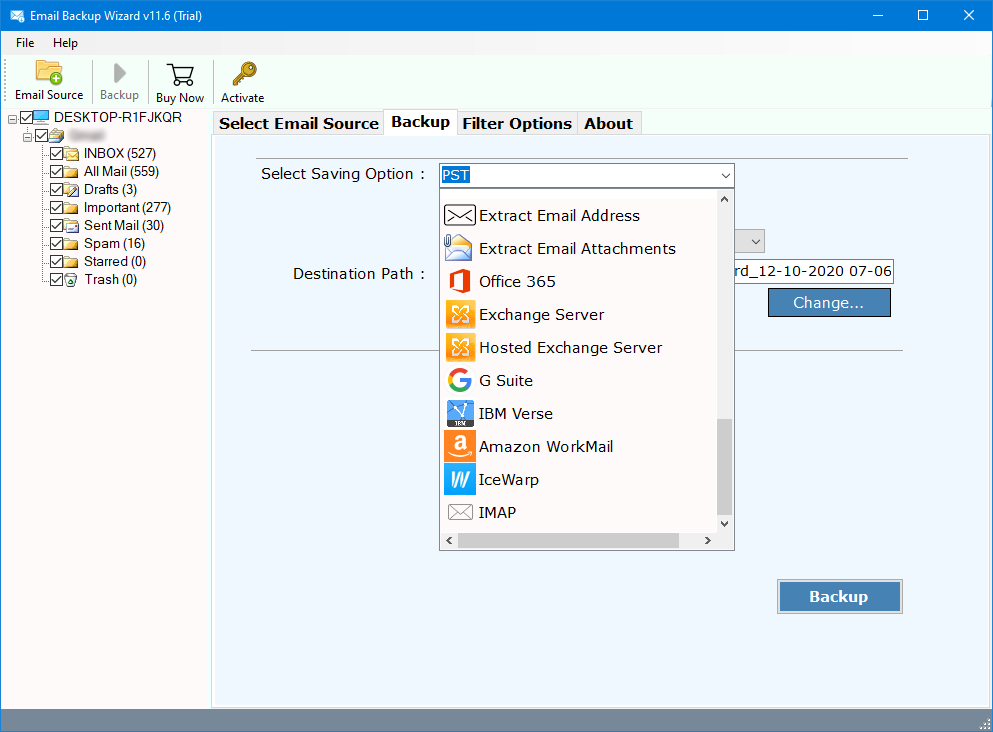
- Enter your “Proton Mail” details with IMAP Host and Port No. respectively.
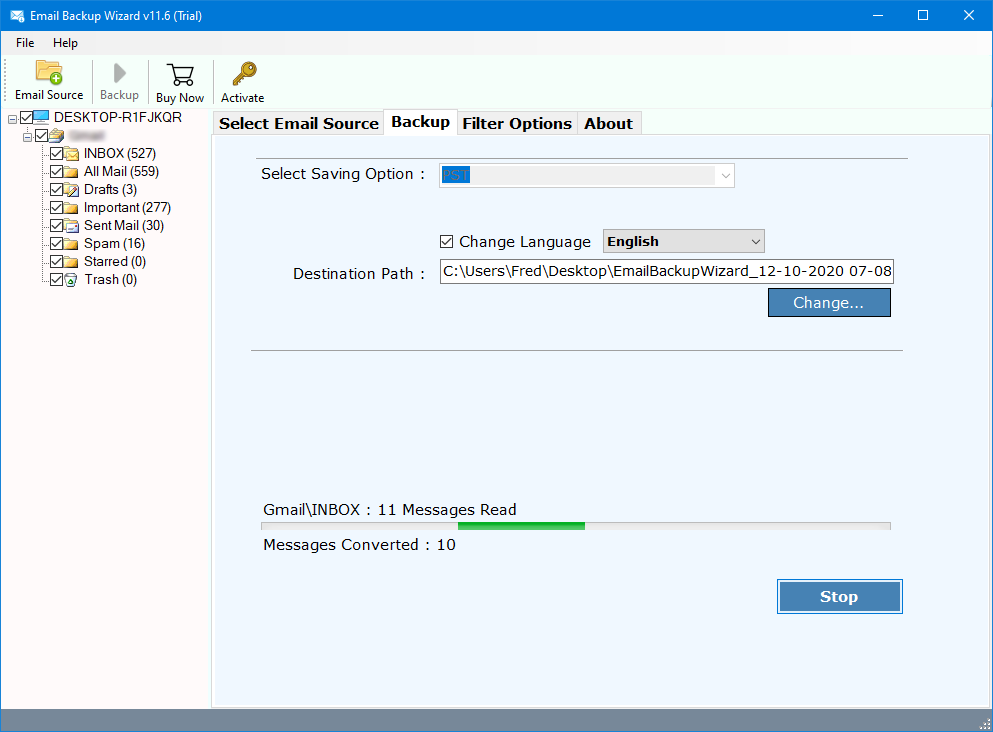
- Finally, hit “Backup” and wait for the process to complete.
Explore the Features of the Automated Tool
- Provides an advanced filter option for users to select emails according to dates, type, sender/receiver’s details, and many more.
- Easily migrate from Hotmail to Proton Mail in bulk, saving an ample amount of users’ time and effort, enhancing the workflow.
- Does not require any third-party client to export, import, backup, or migrate files like emails, calendars, and contacts.
- Guarantees to preserve the integrity of the data-like attachments and metadata, with a uniform folder hierarchy.
- Safely migrates files to the Hard drive, Local Drive, Operating system, and Pen Drive.
- 100% safe and secure, as the solution works completely without the internet.
- Consists of modern security system protocols and encryption technologies.
- Offers a comprehensive log report after the completion of the migration process.
- Migrates data from Exchange, Outlook, Gmail, Office 365, Thunderbird, with numerous file formats like PST, PDF, MBOX, CSV, MSG, and the list goes on.
To Conclude
For all the users who stress more about data security, authority, and privacy, forwarding emails from Hotmail to Protonmail is indeed an apt strategy. While certain easily available and free approaches can be proven useful to add Hotmail to Proton Mail, consisting of some of the basic import processes, they often become a burden when it comes to handling oversized files, large mailboxes, and historical data.
To minimize such contingencies, reliable experience with 100% accuracy, it is suggested to use an automated solution like the Email Backup Wizard. The robust solution can migrate from Hotmail to Proton Mail without losing any information during the transition and maintaining the folder structure without a hitch. For instant, an ideal transition uses the right method to without any data loss.
4.9
based on 1207 user reviews