Zoho Mail Settings: SMTP, IMAP and POP Server Settings

 4.9based on 1207 user reviews
Setting up the correct Zoho Mail Settings is important for using email functionality across devices and apps. To begin with, you need to know the key protocols involved. When setting up these configurations, whether it is for Outlook, WordPress, Zoho CRM, or syncing with IMAP, getting the server settings correct will ensure that emails are delivered securely and reliably.
This guide will provide you with a detailed analysis of Zoho Mail SMTP, POP3, and IMAP settings. Additionally, we will provide a direct method to download emails or switch to other email services without requiring these technical configurations. Therefore, keep reading.
Understanding SMTP, POP3, and IMAP Protocols
POP3 downloads your emails to one device only. However, this can work for you if you don’t need to sync across devices.
In contrast, IMAP allows you to sync your mailbox across different platforms, perfect for how we work today.
Furthermore, SMTP is important for outgoing email, as it takes care of all your distribution chores.
In summary, when you mention Zoho Mail SMTP Settings, Zoho Mail IMAP SMTP Settings, or Zoho Mail POP SMTP Settings, you are putting in place the receiving (IMAP) and sending (SMTP) Zoho Mail Settings to set up complete email capabilities.
Zoho Mail Outgoing Mail Settings (SMTP)
Below are the official instructions provided by Zoho on how to set up Zoho Mail SMTP Settings.
For Personal and Free Organization Users:
- SMTP Server: smtp.zoho.com
- Port (SSL): 465
- Port (TLS): 587
- Authentication: Required (you will use your full email for this)
- Encryption: SSL/TLS
For Paid Organization Users (Custom Domains):
- SMTP Server: smtppro.zoho.com
- Port/Encryption: Same as above
Once you have the Zoho Mail SMTP Setup correctly, the emails you send out from your client should not have any issues reaching their destination. As a result, your communications will be reliable.
Zoho Mail IMAP Configuration
To achieve two-way synchronization when sending emails, combine the IMAP settings with SMTP settings:
- IMAP Server: imap.zoho.com (or imappro.zoho.com for custom domains)
- Port: 993 (SSL required)
- SMTP Server: the same as above (smtp.zoho.com or smtppro.zoho.com)
- Ports: 465 (SSL) or 587 (TLS)
- Authentication: Required
As a result, these Zoho Mail IMAP SMTP Settings allow for received emails to be synced and sent securely.
Zoho Mail POP SMTP Settings (Offline Use)
Want your emails stored locally without syncing? In that case, use SMTP Zoho Mail Settings for POP3:
- POP3 Server: pop.zoho.com (or poppro.zoho.com for paying users)
- Port: 995 (SSL)
- SMTP Server: smtp.zoho.com or smtppro.zoho.com
- Ports: 465/587 (SSL/TLS)
Overall, using these Zoho Mail POP SMTP Settings is ideal for offline email storage or devices with only one use case.
WP Plugin SMTP Settings for WordPress Integration
To set up email notifications on WordPress, for instance, provide the following Zoho Mail SMTP Settings details to your SMTP plugin:
- SMTP Host: smtp.zoho.com
- Port: 465 (SSL) or 587 (TLS)
- Authentication: Enabled
- User: Your full email address
- Password: If you have 2FA enabled then use the app specific password.
By ensuring these Zoho SMTP Settings for WP Plugin for Zoho Mail, you will therefore have successful deliveries of site form submissions, alerts and transactional emails.
Configuring SMTP Settings in Outlook
To enable Zoho Mail SMTP settings in Outlook, simply do the following:
- Select File >> Account Settings >> More Settings.
- Then, under the Outgoing Server section, enter smtp.zoho.com and check for authentication.
- After that, change to port 465 (SSL) or port 587 (TLS), depending on your encryption method.
- Next, enter your full email address and password/app-specific password.
- Finally, save your changes and test.
Consequently, this procedure ensures that turning on Zoho Mail SMTP Settings in Outlook for Zoho Mail can be done successfully and securely.
Pro Tip – Backup & Migrate Zoho Mail Easily Across Different Platforms
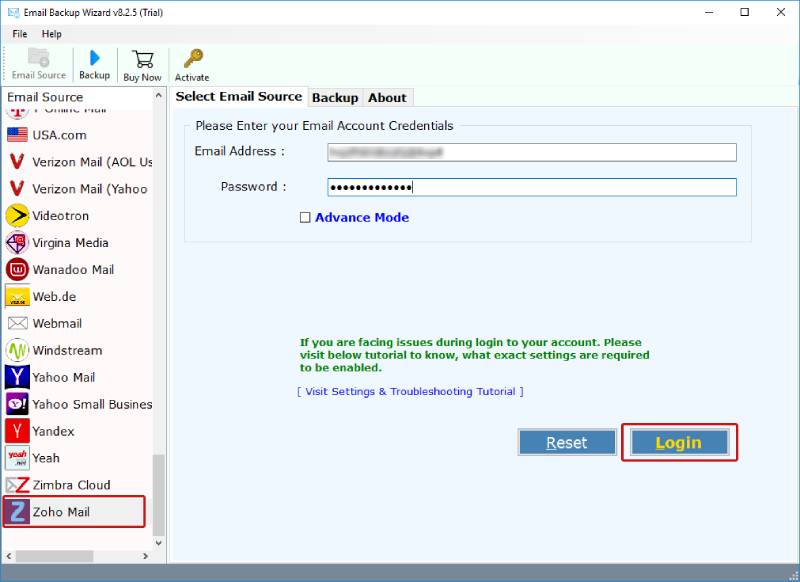
While Zoho Mail SMTP Settings are important for sending emails, many users also require a way to back up, migrate or simply export their email and Zoho mailbox. Instead of individually downloading messages like many do, you can therefore use the Email Backup Software, a professional backup tool which lets you backup Zoho emails directly, and migrate messages to other email services. It also supports Zoho Mail IMAP SMTP Server settings so it is easy, safe and painless!
Why Use the Software?
Using the software is undoubtedly the most efficient method because Zoho Mail Settings of IMAP, POP & SMTP server can be very technical at times. The software enables you to fulfill your needs without the need for any technical work.
Simply log in with your Zoho Mail account credentials, select a backup or migration format you want, and the software does everything for you without any technical configuration. You don’t have to insert the Zoho Mail SMTP Server information, configure any ports, or correct any wrong settings or errors – all safely and securely provided to you with a user-friendly interface, streamlining your time and effort in line with your requirements.
Conclusion
In conclusion, properly configuring your email client with the correct Zoho Mail Settings will guarantee smooth email delivery and reception. In particular, correct Zoho Mail SMTP Settings, Zoho Mail IMAP SMTP Rules, and Zoho Mail POP SMTP Rules will ensure communication as you expect it to be. No matter if you are configuring server details for Outlook, WordPress, or Zoho CRM the correct Zoho Mail SMTP Server settings will ensure smooth and seamless communication, and for secure backups or migrations, the tool is the smartest option.
FAQs: Zoho Mail SMTP Server Settings
Q1. What are Zoho Mail SMTP Settings?
Specifically, to send emails using Zoho Mail, use the SMTP server: smtp.zoho.com with port 465 (SSL) or 587 (TLS). You need your full Zoho Mail address and password (or app-specific password).
Q2. How can I turn on SMTP settings in Outlook for Zoho Mail?
After adding a Zoho Mail account in outlook, you will want to set up an SMTP server with Zoho Mail. Specifically, you will need an SMTP server smtp.zoho.com on port 465 (SSL) or port 587 (TLS). Make sure you’ve set up authentication and your Zoho email and password.
Q3. Can I configure Zoho Mail SMTP Settings for a WordPress plugin?
Yes, you can send mail through WordPress using the SMTP host smtp.zoho.com (with SSL or TLS) using the correct port and entering your Zoho Mail login credentials.
Q4. What is the difference between Zoho Mail POP SMTP settings and IMAP SMTP settings?
POP will only download your emails to a single device, while IMAP will sync your emails across all of your devices. SMTP works alongside both to send outgoing emails.
Q5. How do I back up my Zoho Mail emails?
The recommended tool allows you to backup, migrate, or export data recognized email formats too. Moreover, it supports Zoho IMAP server, so it should be easy to move your emails to different platforms.
4.9
based on 1207 user reviews