Learn All About How to Backup Emails to OneDrive

 4.9based on 1207 user reviews
Saving crucial digital communications in a secure space is no longer a voluntary option, as it has now become a requirement for securing data. Containing confidential information such as personal correspondence, business records, and legal documents, users need a proven method to safely backup emails on OneDrive to avoid disruptions, compliance issues, or permanent data loss. Read the blog till the end to tackle such scenarios without any hitch as we cover everything you need to know about each method to save emails to OneDrive efficiently.
Plenty of users across the globe tend to have it that their service provider is the only one that safeguards their files, like emails, contacts, tasks, calendars, etc. While this assumption is not entirely incorrect, there are many clients who do not do so. The majority of email clients offer certain restrictions, short-term recovery of emails, synchronization of data, but do not provide a true backup emails to OneDrive.
Whether you are a sole user, a professional, or a business enterprise, trying to comprehend “How do I backup my emails to OneDrive” is important. As storage spaces like OneDrive provide a safe destination and easy accessibility to save emails across all devices.
Use Cases to Backup Emails to OneDrive
Some of the common scenarios where users are required to copy emails to OneDrive are the following:
- Legal Compliance: Certain businesses or legal departments are required to archive emails to OneDrive to fulfill regulatory needs for the purpose of retaining crucial data.
- Employee Transition: Before leaving, users are obligated to copy emails to OneDrive to submit all of their professional and personal information, contacts, and achievements that occurred to the higher authorities during their time.
- Access in Offline Mode: Archiving emails in offline mode enables users to access information without the need for an internet connection or in times of outage.
- Managing Storage: In times when the mailbox of the respective is about to reach its maximum limit, users copy emails to OneDrive to preserve past and present records of both their professional and personal communications.
Upload emails to OneDrive through Manual Techniques
Method 1: Drag and Drop
- Open the Email client on your OS
- Go to the folder consisting of the emails you wish to backup
- Open OneDrive: Finder for Mac, and File Explorer for Windows
- Go to the existing folder or create a new one if you want to save emails
- Drag the email and drop on the folder on OneDrive.
- Repeat the process for the rest of the email.
Method 2: Save as PDF
- Open the specific email you want to archive to OneDrive
- Further, double-click or right-click on the email
- Click on “Print,” or you can press CMD + P or Ctrl + P
- Select your preferred PDF option and hit “Print.”
- Tap on “Save As” and choose the path where you want to save the emails
- Repeat the process if there’s more than one email
Introducing Professional’s Choice to Save Emails to OneDrive
Traditional methods tend to fall short when dealing with large-sized emails or oversized mailboxes. Exporting emails one at a time only works with a small number of email files, which can sometimes lead to missing information and disruption. To overcome such challenges, users often take assistance from an automated tool to save emails to OneDrive in an organized way.
Using a professional solution like the Email Backup Wizard saves an ample amount of users’ time and energy, as the tool is especially constructed for users to simplify the backup process in a controlled manner. The tool not only saves multiple email files simultaneously, but also guarantees 100% preservation of data with no data loss during the backup process, easing the users with a safe and secure environment.
Steps to Backup Emails to OneDrive
- Download and open the automated solution on your device.
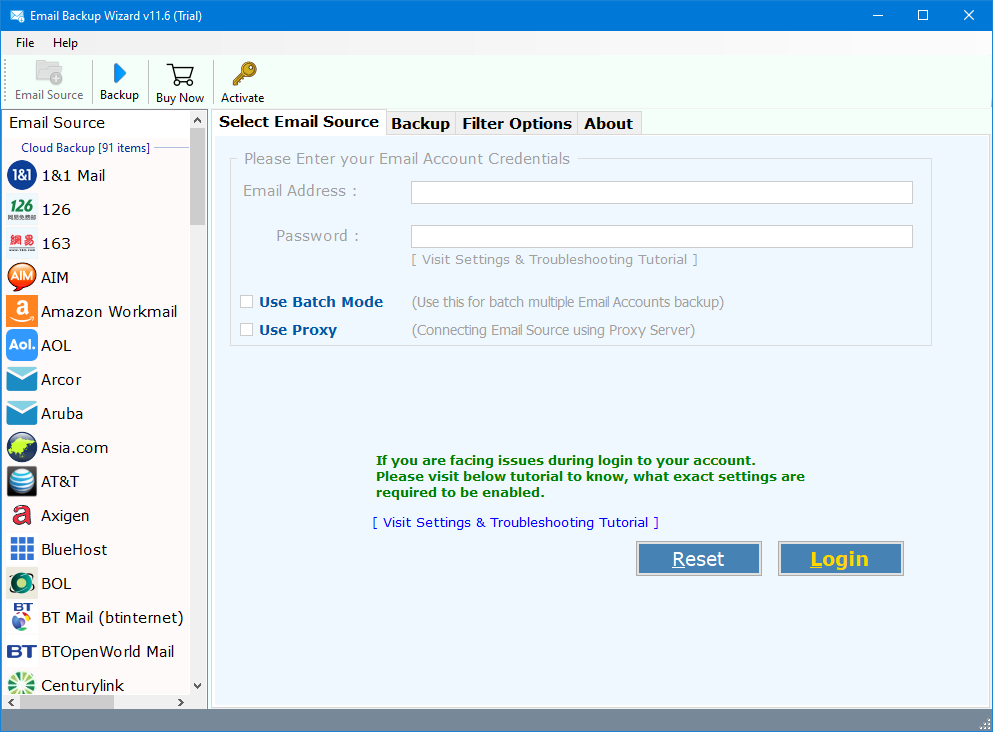
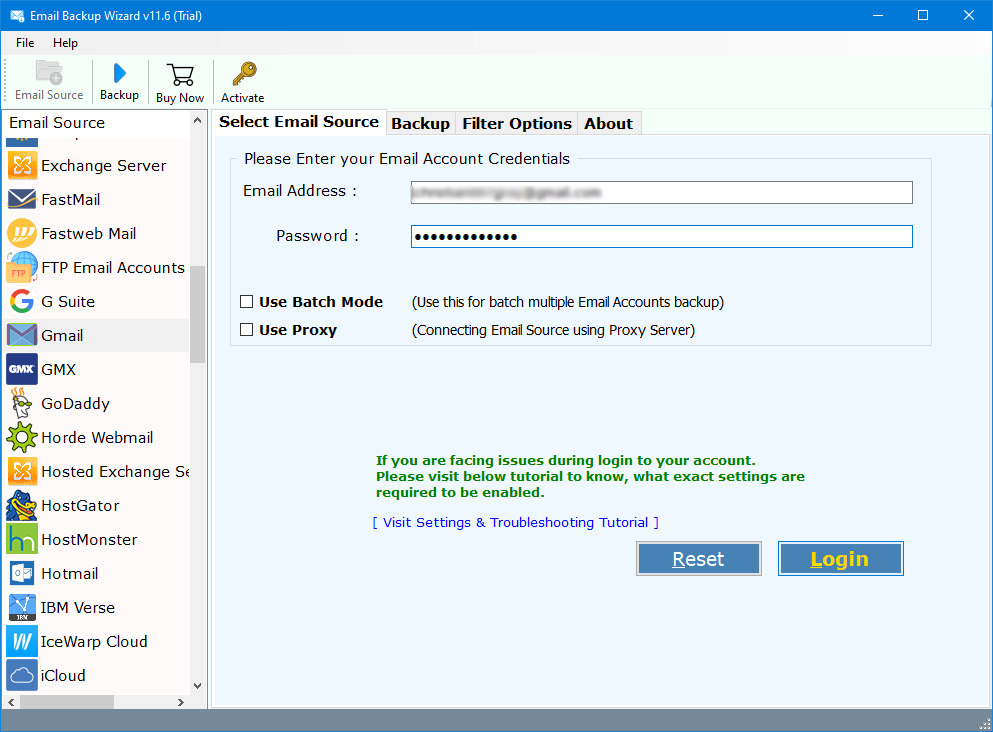
- Enter your login details for the client you want to backup your emails from
- Select your preferred saving format. You can choose “IMAP” option if the desired format is not available in the list.
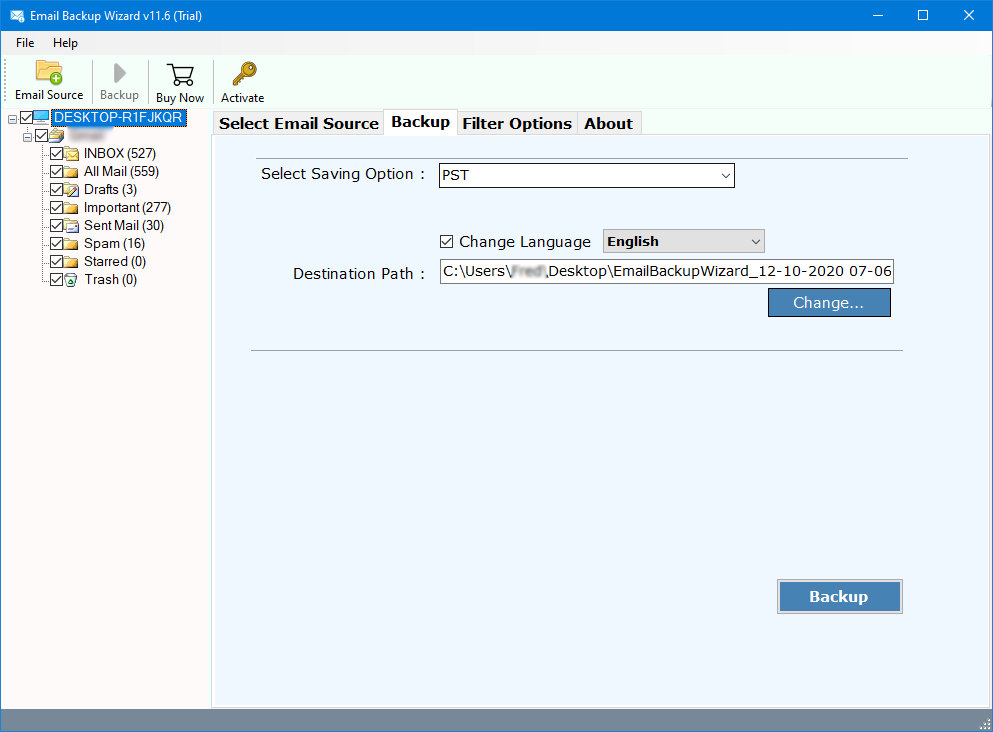
- Choose the Destination Path where you wish to upload emails to OneDrive.
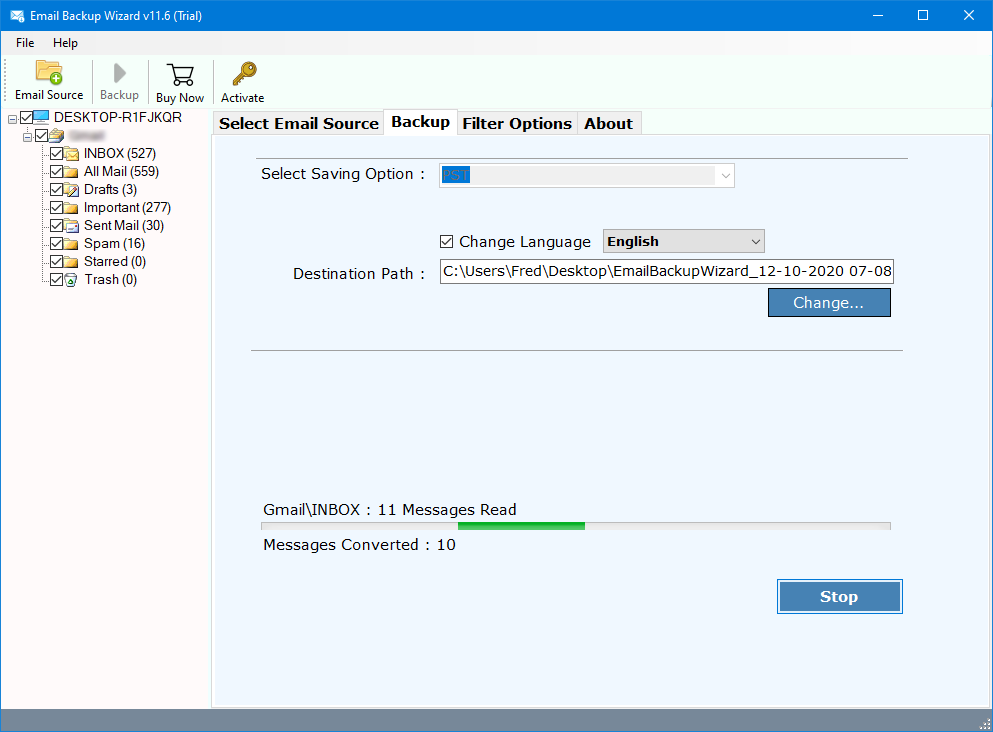
- Hit “Backup” and wait for the completion of the backup process.
Comparison of Manual and Automated Techniques
| Criteria | Manual Techniques | Automated Method |
| Steps | Complicated and lengthy | Simple and direct |
| Scale | Not suitable for large files or mailboxes | Suitable for all types of email files |
| Data Integrity | Not Ensured | 100% ensured |
| Types of Users | Preferably for Technical Users | All types of users |
| Time Required | High | Low |
| Risk | Maximum | Minimum to no risk |
| Attachments | Archived separately | Uploaded within the file |
| Size Limitations | Depending on the email client | No limitations |
Conclusion
While using traditional methods enables users to backup emails to OneDrive or upload emails to OneDrive in restricted cases, they prove to be insufficient and impractical when it comes to scalability. This is where the professional’s choice steps in, with the purpose of providing efficiency, security, and consistency.
This is why all potential users must understand how to archive emails to OneDrive to avoid unexpected data loss, and to depend only on the designated email clients and putting all emails, contacts, calendars, and tasks to numerous risk, like theft, malware, infection, and the list goes on.
Frequently Asked Questions
Q1. How do I backup my emails to OneDrive without any risk of data loss?
A. It is always advised to use a professional tool to archive emails to OneDrive as it safely encrypts backups whenever required, maintains all data in order, can be accessed in offline mode, and the list goes on.
Q2. Does manual method save emails to OneDrive in Bulk?
A. No. Manual method is only beneficial for archiving a few emails as it does not have enough capacity to batch upload emails and could open the risk of hindering the structure of the data.
Q3. How can I backup emails to OneDrive in less time using manual options of the email clients?
A. It is not an issue if you have a few files. However, it is not possible to archive large email files in batch.
Q4. Does the automated tool preserve data integrity?
A. Absolutely! One of the best features of the tool is preserving the integrity of all the processed emails during and after the export process.
4.9
based on 1207 user reviews