How to Migrate Kerio to Office 365? 4 Methods

 4.9based on 1207 user reviews

If you are planning to migrate Kerio to Office 365, you are not alone. A lot of businesses and users want to migrate Kerio mail to Office 365 because it is more feature rich, cloud-based, and has more functionality than traditional server-based systems. Kerio is a good server that offers electronic mail, but Office 365 is a more modern solution and caters to the needs that are required today.
In this blog, we are going to walk you through the steps on how to migrate emails from Kerio Mail to Office 365 in a safe way. Regardless of whether you are a beginner or not very technical, we are going to ensure that you will have a simple blog to follow along.
Quick Answer: You can migrate Kerio mailboxes to Office 365 using Classic Outlook for PST export for small data, native IMAP for emails only, or Network Upload for massive PST imports. For the most efficient way to perform a complete Kerio to Office 365 migration, including all emails, attachments and multiple user accounts with bulk data, use the dedicated Kerio to Office 365 migration tool.
Understanding Kerio and Office 365
Kerio: Kerio is an email server that companies use to manage emails, contacts, and calendars. It sits on the organization’s computers and network.
Office 365: Office 365 (now Microsoft 365) is a cloud-based service owned by Microsoft. This will allow you to use email, Word, Excel, Teams, etc, all through the internet. You can connect to your data anytime, from anywhere.
Why Migrate Kerio to Office 365?
Moving from Kerio to Office 365 means cutting out the burden of server management on premise and gaining a powerful cloud working environment.
- Cloud Access: Read and send emails in total safety from any place and any device.
- Mailbox Storage: Get 50 GB (Business) to 100 GB (Enterprise) of storage for each user.
- Security Features: Use advanced threat protection and MFA.
- Access to Collaborative Features: Work with the integrated applications such as Teams, SharePoint, and OneDrive.
- Less Server Maintenance: Microsoft will take care of the running of the system infrastructure.
- Data Backup and Recovery: Retention policies will prevent loss of data that might happen inadvertently.
How to Migrate Kerio Mailbox to Office 365? (4 Methods)
Here are four simple methods to transfer email from Kerio Mail to Office 365, explained with step-by-step procedures:
Method 1: Transfer Kerio Data to Office 365 Using Classic Outlook and PST
It is possible to manually transfer emails from Kerio to Office 365, although it is somewhat complicated and involves technical steps. In order to do this you will have to use the Kerio Outlook Connector. Here’s how to use it:
- You first need to open Kerio Webmail and select the Integration with Windows option from the login panel.
- Then from the Profile menu, select the Integration Option and download the Kerio Outlook Connector (KOFF).
- This will need to be installed on your computer to transfer emails from Kerio mail to Office 365.
- After installation, open Microsoft Outlook and select File > Info > Add Account.
- Select Manual Setup and select Next.
- On the next screen, select Other and select Kerio Connect.
- In this window you will now set up your Kerio account details with the connector.
- Once your Kerio account is added to Outlook, your Kerio data should now sync, and now you have a PST file saved in Outlook.
- You will then add Office 365 account to Outlook.
- Finally, you can import your PST file into your Office 365 account.
- Now, your emails from Kerio will be in Office 365.
Note: This is not recommended for users that are not technical or experienced. It takes a lot of time, technical steps and there are two separate tools you need to download.
Learn: How to Download & Save All Outlook 365 Attachments In Bulk?
Method 2: Native Microsoft 365 IMAP Migration
Use the Microsoft 365 Admin Center to export emails from Kerio IMAP using a CSV mapping file. The export will take care of emails and email folders, but will not cover contacts and calendars.
- To start, make sure that IMAP service is enabled for the migrating users in Kerio Connect Admin panel.
- Second, create a mapping CSV file for Kerio accounts to Microsoft 365 which contains three columns: Email Address, Username, and Password.
- Third, log into the Microsoft 365 migration interface, select the IMAP migration option and set up your IMAP migration endpoint using your Kerio server details.
- Then upload the CSV, create a batch, and start the process.
- Check the Microsoft 365 mailbox to see if all the emails were transferred or not.
Note: IMAP migrations do not transfer emails that are larger than 35 MB and there is a limit of 500,000 items per mailbox.
Method 3: Microsoft 365 Network Upload for PST Import
Transfer your pre-exported Kerio PST files to Azure storage through the use of Microsoft’s AzCopy application and then link them to the right mailboxes using Microsoft Purview portal.
- Sync your Kerio with KOFF and create PST files from your users’ data in the Classic Outlook application.
- Download AzCopy from Microsoft.
- Use AzCopy to upload PST files to the Azure storage URL received.
- Generate a CSV mapping file that corresponds the PST files to the intended Microsoft 365 mailboxes.
- Go to the Microsoft Purview portal and create a job for PST Import.
- Upload the CSV file and validate it.
- Start the import when the CSV file is ready and check the data in Microsoft 365 after completion.
Note: The administrator needs to be an expert to map and upload files accurately to avoid routing errors.
Method 4: Direct Solution to Migrate Kerio to Office 365 in Bulk
Email Backup Software connects directly to your Kerio IMAP server to automate the transfer into Office 365. It bypasses manual PST handling and supports bulk moving of Kerio data to Office 365. It provides “I am admin” option to directly transfer emails from Kerio user accounts to their respective user mailboxes in Office 365.
Check compatibility with your OS and mailbox setup, then choose your platform below to start.
How to Migrate Kerio Mailbox to Office 365? Using Tool
Prerequisites: Before starting to use the Kerio to Office 365 migration tool, create empty mailboxes in Office 365 for each Kerio user. Start > Install the software, enter your Kerio credentials, select your required folders, and choose Office 365 as the destination to initiate the automatic backup.
- Download and install the Kerio to Office 365 migration tool on your Windows or Mac machine.

- Select IMAP Server as your source email provider.

- Enter your Kerio account and IMAP host details to establish a connection.
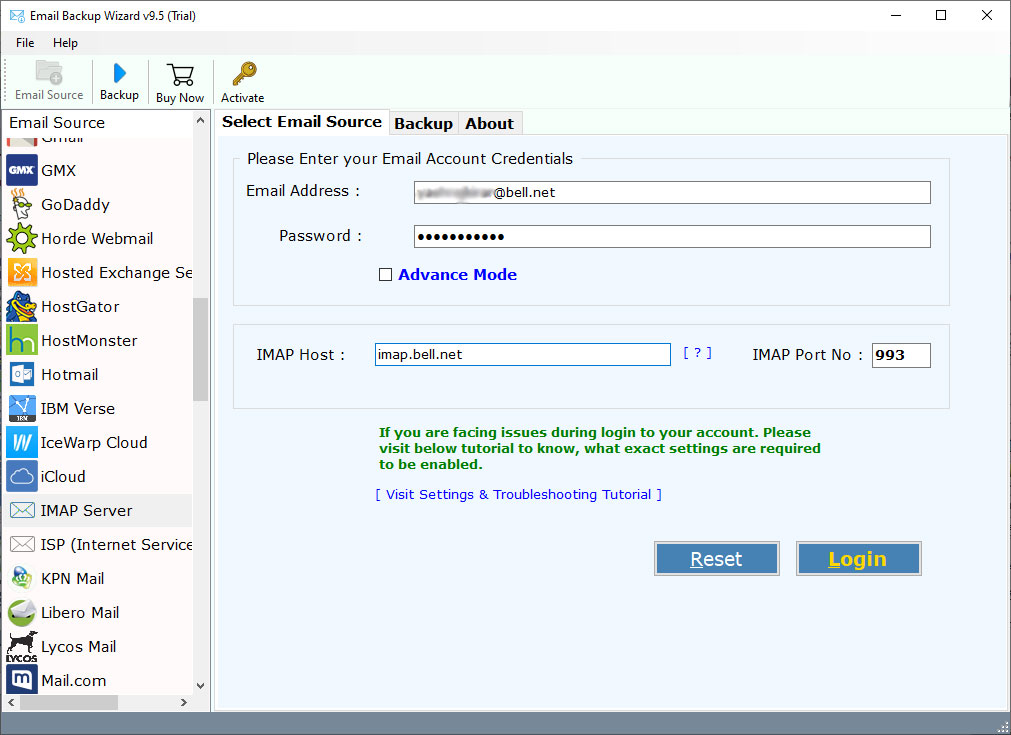
- Select the specific emails and folders you wish to migrate.

- Pick Office 365 as your destination saving option.

- Pick the “I am Admin” option to migrate Kerio mailbox to Office 365.

- Enter your Microsoft 365 credentials and click Backup to start.

Conclusion
To migrate Kerio to Office 365 without any stress, proper planning and good preparation is must. Along with that, you need to pick the right approach too, which is equally crucial! Manual mechanism is a big NO as it generates complexity, and a pro tool is a big YES owing to the ease of usage.
FAQs: Kerio to Office 365 Migration
Q1: Does migrating from Kerio to Office 365 cause downtime?
Ans: Manual IMAP and Classic Outlook to PST takes time to migrate Kerio to Office 365. However, the professional Kerio to Office 365 migration tool like BitRecover instantly transfer data from Kerio to Office 365.
Q2: Can I migrate multiple Kerio mailboxes to Office 365 at once?
Ans: Using the dedicated Kerio to Office 365 migration tool, users can migrate multiple Kerio mailboxes to Office 365 at once.
Q3: Will my email folder structure change after migrating?
Ans: No, if you migrate Kerio to Office 365 using the specialized tool, it will maintain the original folder structure.
Q4: Can the native Microsoft 365 migration tool transfer Kerio calendars and contacts?
Ans: No, the native IMAP tool only moves emails and folders. You must use PST workflows or third-party software to transfer calendars and contacts.
4.9
based on 1207 user reviews